Build your first menu
With your account created, the next step is building your menu. It takes three steps: create categories, add products, and bring it all together in a menu. In under an hour, your digital menu will be ready to appear in your online store.
1. Create your categories
Go to Store → Product Categories in the panel.
Categories are the sections of your menu: they're how customers browse. Create 2 or 3 to start (for example, "Burgers", "Drinks", and "Desserts"). You can add more later, anytime.
2. Add your products
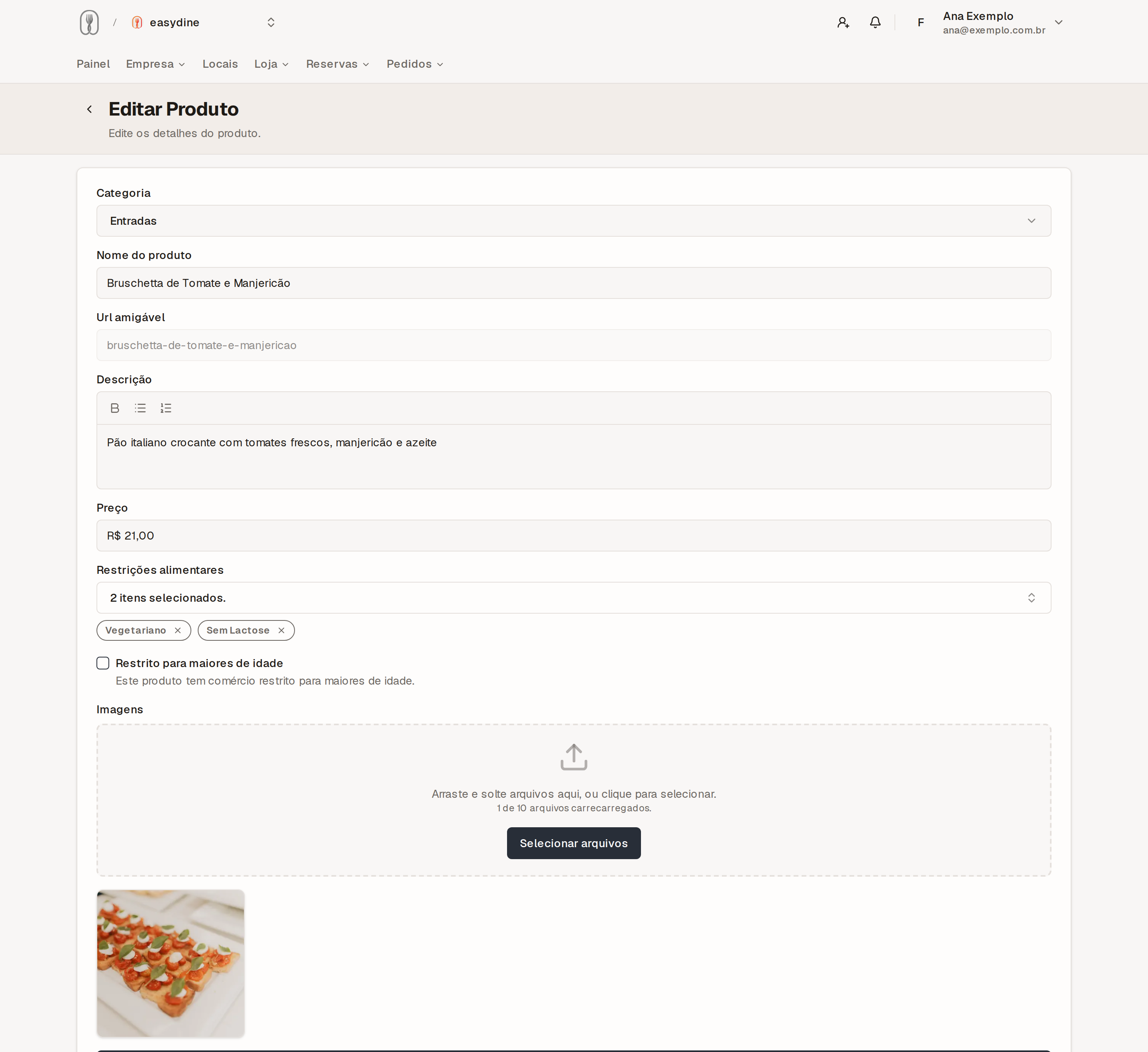
Go to Store → Products and add each item with:
- A clear, short name (e.g., "Double Cheeseburger").
- A photo of the actual product.
- A price.
- A description with the main ingredients.
Two features worth using from day one:
- Dietary badges: mark a product as vegetarian, vegan, gluten-free, lactose-free, sugar-free, or nut-free. Customers see the badge right on the menu and can decide without having to ask. Items containing alcohol can be marked 18+.
- Combos: build a combo and the menu automatically shows an "Includes:" list with everything that's part of it.
Use natural light, a clean background, and the real dish, not a generic stock image. A well-shot photo taken with your own phone already makes an item far more likely to be ordered.
3. Put the menu together
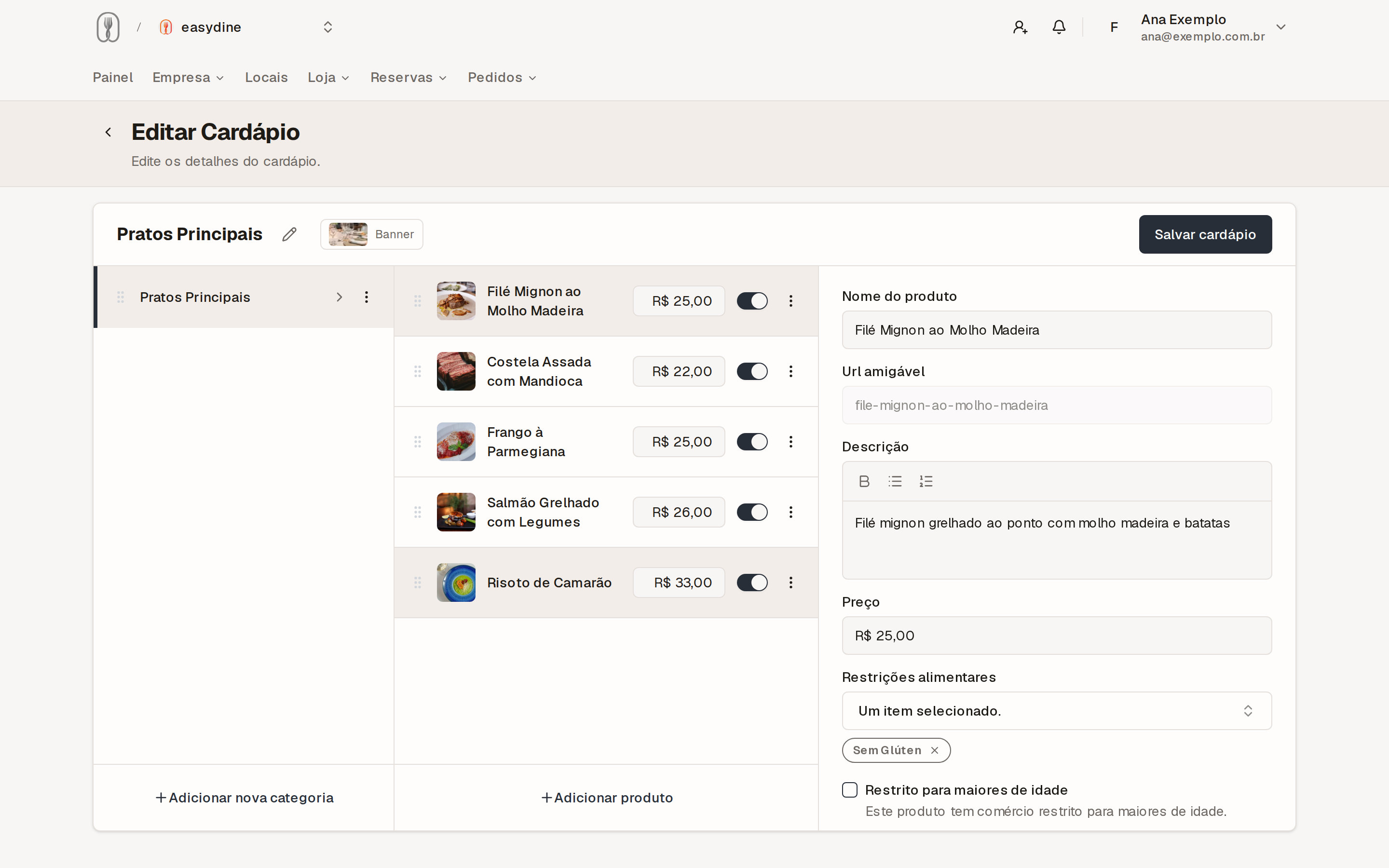
Go to Store → Menus and create your first menu:
- Give it a name (e.g., "Main menu").
- Add the categories and products you created.
- Drag items to set the order. Put your best sellers at the top.
- Choose a cover image to give the menu the look and feel of your business.
You can have more than one menu (one for lunch and another for dinner, for example) and choose which one appears in your store.
Want to see what it looks like to the customer? Browse the menu in the demo store.
You don't need to add everything at once. Start with your 10 to 15 best-selling items, publish, and fill in the rest over time. Any change reaches your store within a few minutes.
Next step
Menu ready? Now it's time to publish your online store and share the link with your customers.