POS for the dining room: waiter, cashier and kitchen
The dining room, the cashier and the kitchen are easydine's POS (point of sale) for table service, with three screens, one for each place in your business. The waiter opens the table, sends the order and answers calls from a phone. The cashier checks the bill, records the payment and closes the table. The kitchen sees what it has to prepare. The three screens run in the browser, with nothing to install; only printing the tickets uses the print agent on the shop's computer (Kitchen printing).
| Screen | Where it lives | What it is for |
|---|---|---|
| Orders → Dining room | On the waiter's phone | Table map, orders, calls and the pre-bill |
| Orders → Cashier | On the cashier's computer or tablet | Bill, payments, splitting, discount and closing |
| Orders → Kitchen Display | On a screen in the kitchen | The orders to prepare, without prices or customer data |
Whoever has easydine's built-in Garçom (waiter) role lands straight on the dining room, and whoever has the Caixa (cashier) role, straight on the cashier. See the roles in team and permissions.
In the state of Santa Catarina, the dining room, the cashier and ordering from the table QR are not available yet. At locations there, the table QR opens the menu only. A location also needs the state filled in on its address for the dining room to work.
Before you start
In Orders → Configurations, on the location, you register the tables (with each one's area, such as "Terrace" or "Room 1") and set up the dining room:
- Dining store: the store whose menus and prices the dining room uses, in the waiter's order, on the table QR and on the printed menu.
- Ordering from the table QR: off, approve every order, or approve only each phone's first order. Learn more in table ordering by QR code.
- Service charge (%): blank means no charge. On the bill it always shows as optional.
- Cover charge: the price per person and what comes with it. It is only charged when the waiter records the cover charges served.
- Cleaning step: once closed, the table stays in "Clean" until someone marks it clean.
- How the kitchen works: with a screen (the kitchen moves orders to "Ready") or paper only.
- Operating day turns at: the hour the cashier's "today" starts. With 06:00, a table closed at 01:40 counts in the night before.
Switching the service charge off may have labour consequences for the staff. Talk to your accountant first. And if the service charge has to appear on the tax invoice, that is done in your business's invoicing system: easydine does not issue the invoice.
On the waiter's phone: the dining room
The dining room shows the table map, grouped by area, with each table's state: free, occupied, bill asked, to clean, blocked or reserved. The Mine, All, Free and Bill filters and the search by name keep the map short even in a large venue.
A table also shows what it is waiting for: a guest calling, QR orders to approve, orders ready to serve, a table that asked for the bill again and is waiting for the pre-bill, a table open for 15 minutes with no order yet, or a booking about to arrive.
A booking shows in the dining room once it has a table: in Bookings, when creating or editing it, pick the table from the list. A booking made on the website arrives without a table; until someone picks one in the panel, it marks no table as reserved.
When the party arrives, tap the reserved table and Seat booking: the table opens with the booking's party size, and the booking is completed when the table closes.
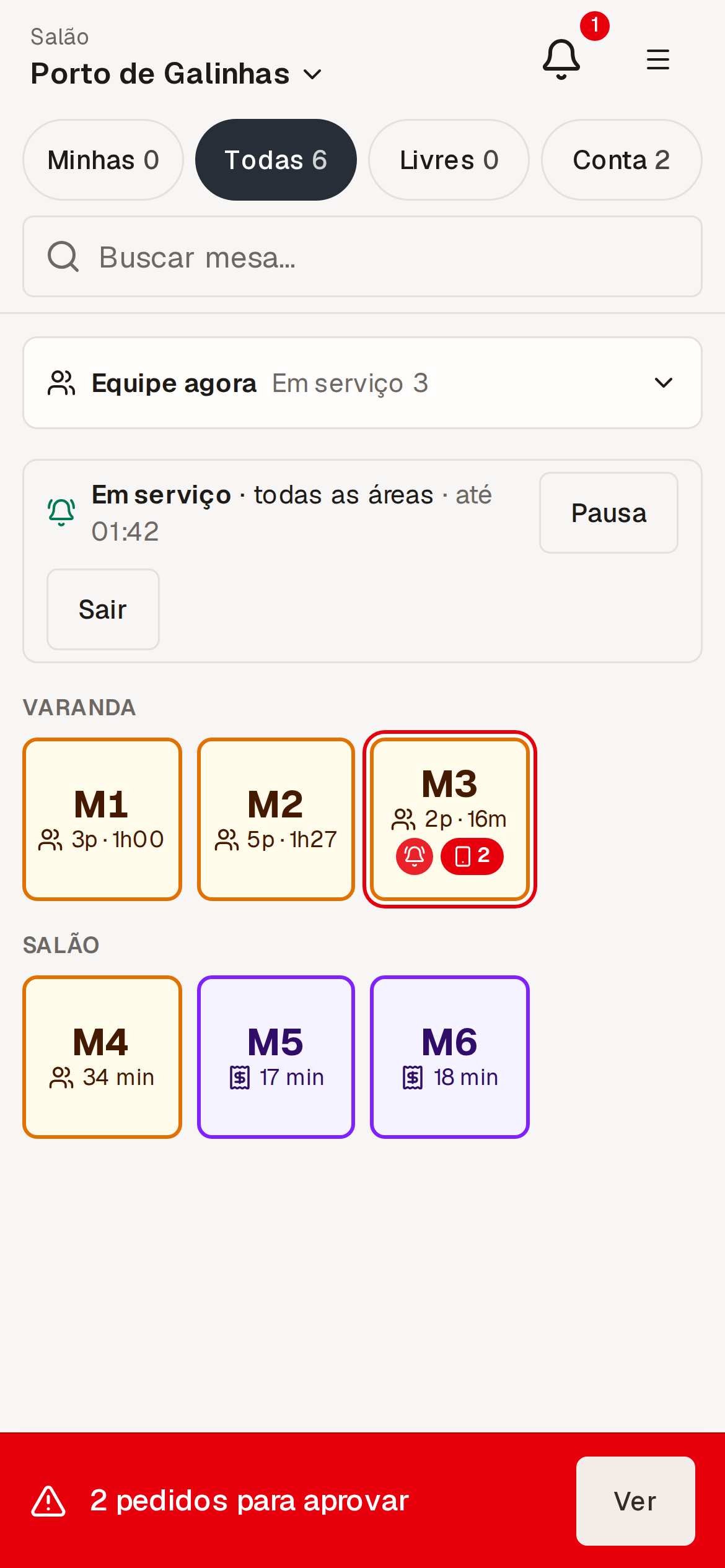
Tapping a table opens its sheet, where the waiter can:
- Open the table, saying how many people arrived, and take the table;
- Send a new order, with search, categories, the most ordered items and a note per item. The order goes to the kitchen with Send to the kitchen. If the connection drops halfway, "Try again" never sends the order to the kitchen twice;
- Approve or refuse the orders the guest placed through the QR. The refusal carries a reason the guest sees;
- Answer calls with On my way and Done;
- Mark an order as served. With the kitchen on screen, only an order the kitchen marked ready (or one that never went to the kitchen) can be marked; one still being prepared cannot;
- Cancel items of an order, with a reason. The cancellation shows on the bill and prints in the kitchen;
- Ask for the bill, print the pre-bill or show the bill to the guest on screen;
- Transfer the group to another free table or join another table into this one. Orders, phones and calls go along. A table with a QR order waiting for approval is not free: approve or refuse it first;
- Record the cover charges served, block the table (maintenance, closed area) and mark it clean. Lowering cover charges already recorded is a bill correction: it is for whoever can change the bill, such as the cashier. A blocked table does not open: nobody can place an order on it, and a QR order made there can only be approved once it is unblocked;
- Disconnect a guest's phone from the table;
- Pass the table to someone else on duty. The change stays in the table's history.
Once the bill is asked for, the table takes no more orders. If the guests keep ordering, the waiter reopens the table.
On duty and calls
On arrival, the waiter taps Start serving and picks the areas they cover that day. With no area picked, they receive calls from all of them. When a guest calls through the QR, the alert goes first to the table's waiter, then to whoever covers the area and, if nobody answers, to everyone on duty, the cashier included.
To receive calls with the screen off, turn alerts on in the dining room itself. See how in notifications.
The waiter can take a break (no calls until they tap Back) and leave the dining room at the end of the shift, passing any open tables to someone else. After 12 hours on duty, the screen asks whether they are still serving; with no answer in 15 minutes, they leave the dining room and their tables' calls go to the area.
The Team now panel shows who is on duty, on a break, or scheduled and not in yet.
The schedule and "on duty" say when a person receives calls. easydine keeps only each person's current state, with no history of clock-ins and clock-outs: it is not a time clock.
At the cashier: the bill, the payment and closing
The cashier uses the same map, with the Bill asked, Occupied, Free and Closed today filters. When a table asks for the bill, the cashier screen plays a sound. Tapping the table opens the bill:
- The bill's items, with what was cancelled and by whom;
- The subtotal, the cover charge, the service charge (optional) with its percentage and base, the discount and the total;
- What has been paid and what is left.
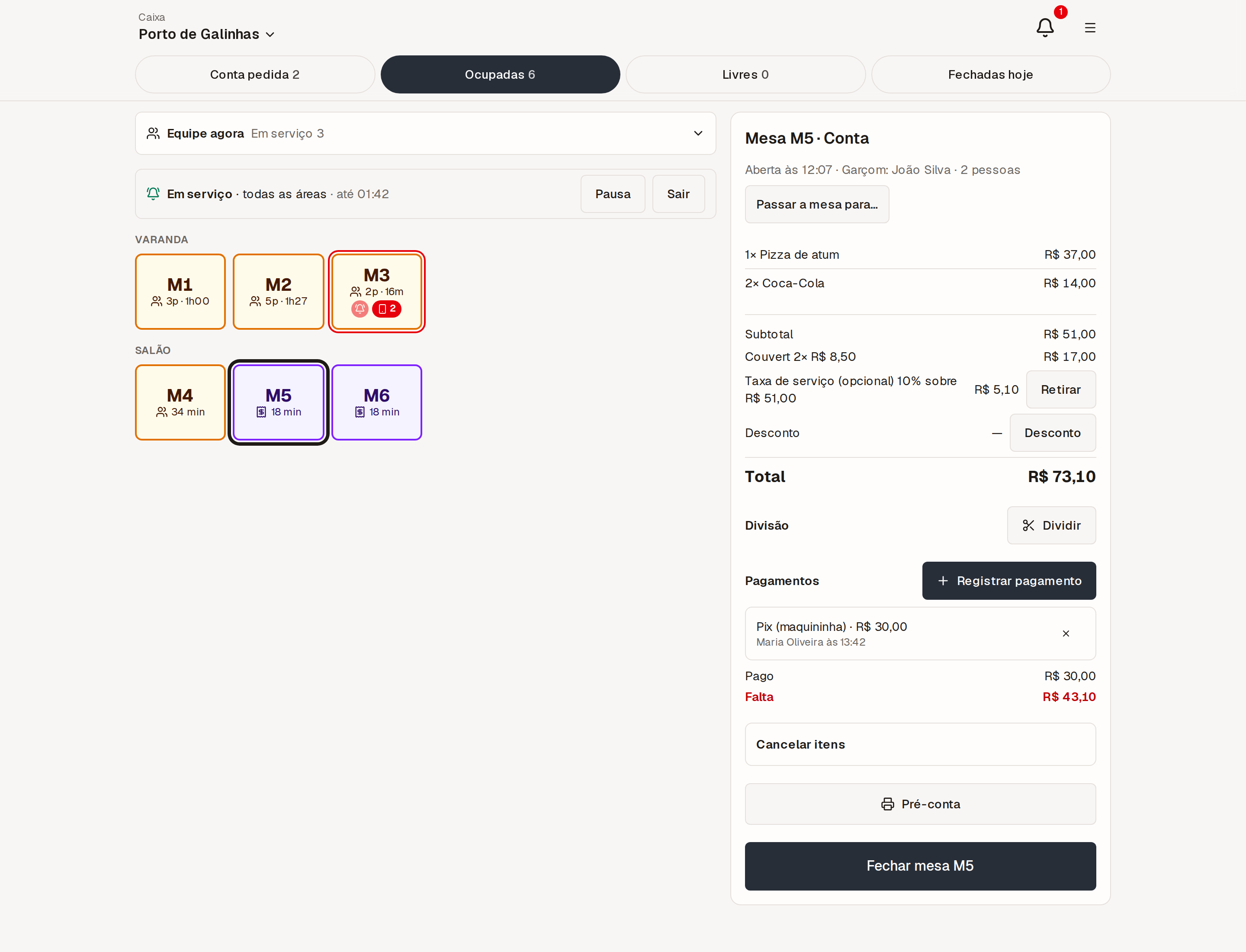
At the cashier you:
- Record payments in cash (with the change worked out), credit, debit, Pix on the card machine, meal voucher or other. It is a record of what the guest paid on the card machine or at the till: no money goes through easydine;
- Split the bill evenly, by amounts or by items. The parts always add up to the total, and if the bill changes after the split, the screen tells you to redo it;
- Give a discount on the bill, up to your company's discount ceiling, which is shown before you type;
- Remove the service charge when the guest asks, with the reason recorded, and put it back if needed;
- Cancel items, with a reason. The cancellation shows on the bill and prints in the kitchen;
- Edit the table without leaving the cashier: Edit table (or Open table, on a free table) opens the same table sheet the waiter uses, with the actions your role allows: open the table, launch an order, transfer, merge, record cover charges, disconnect phones and answer calls;
- Close the table. With the kitchen working on a screen, the table does not close while an order has not left the kitchen. Guest orders still waiting for approval are refused on closing. If an amount is missing, the cashier writes the reason.
Closed today lists the tables of the operating day, with the bills' total, the payments recorded and each table's history: who opened it, who served it, the orders, the calls, the phones disconnected, the cancellations and the payments, in the order they happened.
Pre-bill
The pre-bill is the check the waiter or the cashier hands the guest before payment. It prints on the thermal printer or through the browser, with "PRÉ-CONTA - CONFERÊNCIA DE MESA" and "NÃO É DOCUMENTO FISCAL" (not a tax document) on the paper. The pre-bill can also print by itself when the guest or the waiter asks for the bill, with the number of copies you choose. So that a table asking for the bill again and again does not use paper without end, it prints by itself up to 5 times per open table; after that, the table shows on the map that it asked for the bill again, and the waiter or the cashier prints from the table. Set it up in kitchen printing.
easydine does not issue tax invoices. The invoice for what was consumed at the table stays with your business's own invoicing system.
In the kitchen
Orders → Kitchen Display shows the orders to prepare in columns, with the table, who sent it (waiter, cashier or the guest through the QR — "cashier" when the person who sent it is on duty at the cashier), the notes and the cancelled items, without prices. It shows the orders of the current operating day and the one before: an order forgotten weeks ago does not come back to the queue — except one of a table still open, which stays on the screen until it leaves the kitchen. The kitchen moves each order along the location's status flow to "Ready", and the waiter sees on the table that an order is ready to serve.
Prefer paper? Under How the kitchen works, choose "Paper only": the kitchen works from the printed ticket and nobody has to move the order on screen.
The venue's own phones and tablets
Not every waiter needs an email and a password. A phone or tablet that belongs to the venue can be paired as a dining room or kitchen device:
- On a Floor device, each staff member taps their own name and types a 6-digit PIN only they know. What they see depends on their role;
- On a Kitchen device, the kitchen screen opens with no PIN and no customer data.
See how to pair devices and add staff without an email in team and permissions.
Availability
The dining room, the cashier and the kitchen are part of the orders module, available on the Completo plan. See the details in plans.
Where to go next
- Let guests order on their own with table ordering by QR code.
- Choose what each printer prints in kitchen printing.
- Follow the dining room in the Dining room tab of the reports.