Table ordering by QR code
With easydine, every table in your dining room gets its own QR code. Guests point their phone camera at it, open the menu, place the order, call the waiter and ask for the bill, without waiting for anyone to take it down. The order reaches the dining room, on the waiter's phone, and the kitchen.
How it works
Everything happens in the guest's phone browser. Nobody needs to install anything.
Want to see the menu your guests see? Browse the demo store.
Print your tables' QR codes
Register the tables under Orders → Tables and QR codes (or under Locations, in the location's Tables and QR codes tab), with each one's area (you can create many at once with Add several tables). The QR codes are on the same page, right below the tables, and they are for ordering at the table; a booking does not use a QR code. First, in Orders → Configurations, open the location and choose the dining store: its menu is the one the QR opens. Finally, tap Print QR sheet. A table that already has a QR code keeps the same code when you edit or add tables. The sheet prints on A4, with 6 or 12 cards per page, each with the table's name, the store, the QR code and the address written out.
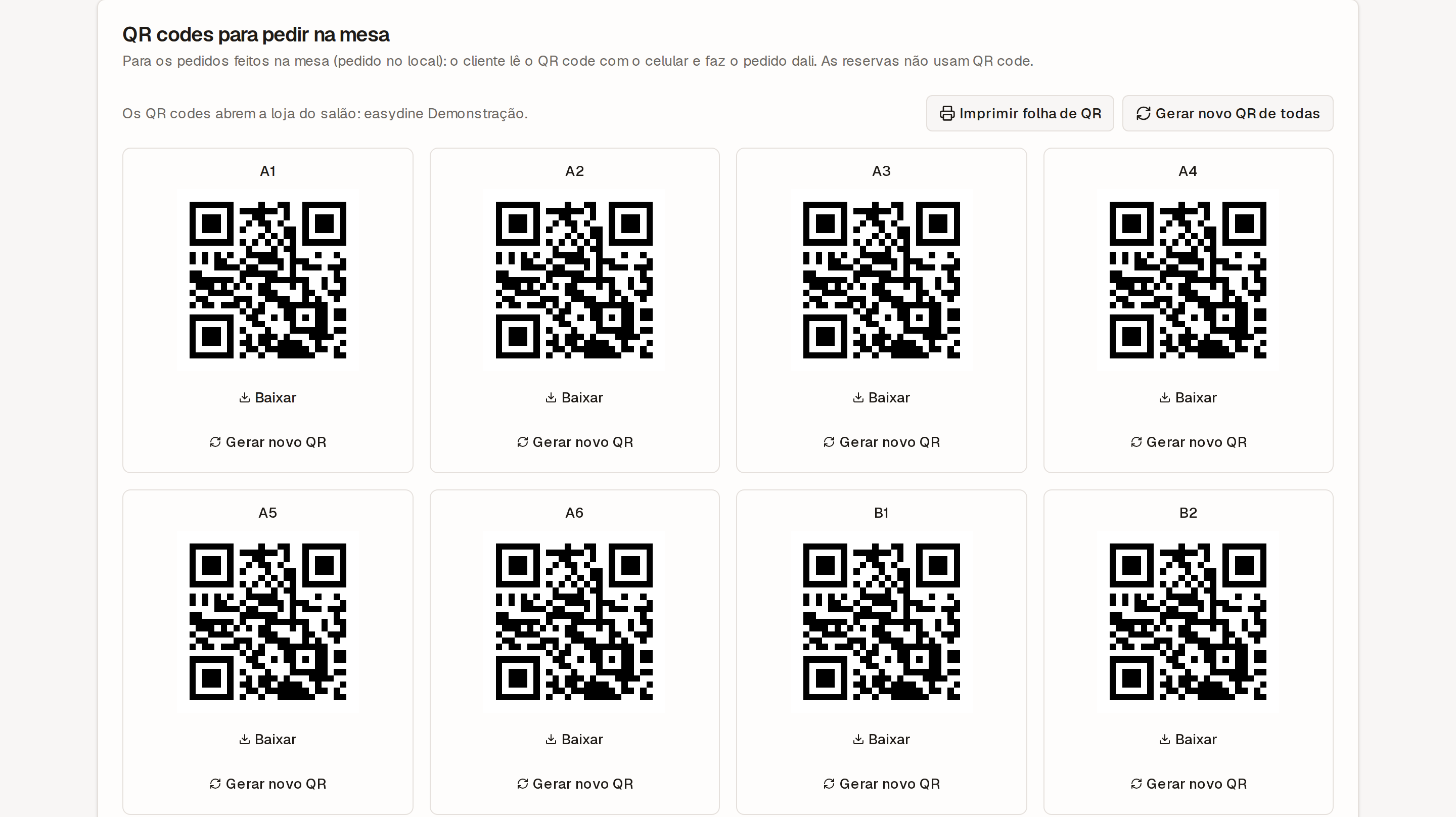
Laminate the cards or use table stands. Each card carries the note "Check that the address starts with…": if someone sticks a label over the QR, the guest notices the address is different.
Lost track of a printed QR? With New QR, easydine replaces the code of one table or of all of them. The old QR codes stop working for ordering; print and swap the cards. Guests who already have an approved order at the table carry on.
You choose how guests order
In the dining room settings, under Ordering from the table QR, pick one of these options:
| Option | What happens |
|---|---|
| Off | Guests see the menu and call the waiter, but do not order through the QR. |
| Approve every order | Every guest order waits for a waiter or the cashier to approve it before the kitchen gets it. |
| Approve each phone's first order | Each phone's first order waits for approval; the next ones go straight through. |
With the first-order option, the approval lasts while the table is open, and an approved phone that places more than 3 orders within 10 minutes waits for approval again, so one approval by mistake does not become unlimited orders.
You can also require the table to be opened by a waiter before guests order, and limit how many orders may wait for approval per phone and per table. The waiter approves or refuses on the table's sheet, in the dining room; a refusal carries a reason the guest sees.
What the guest sees
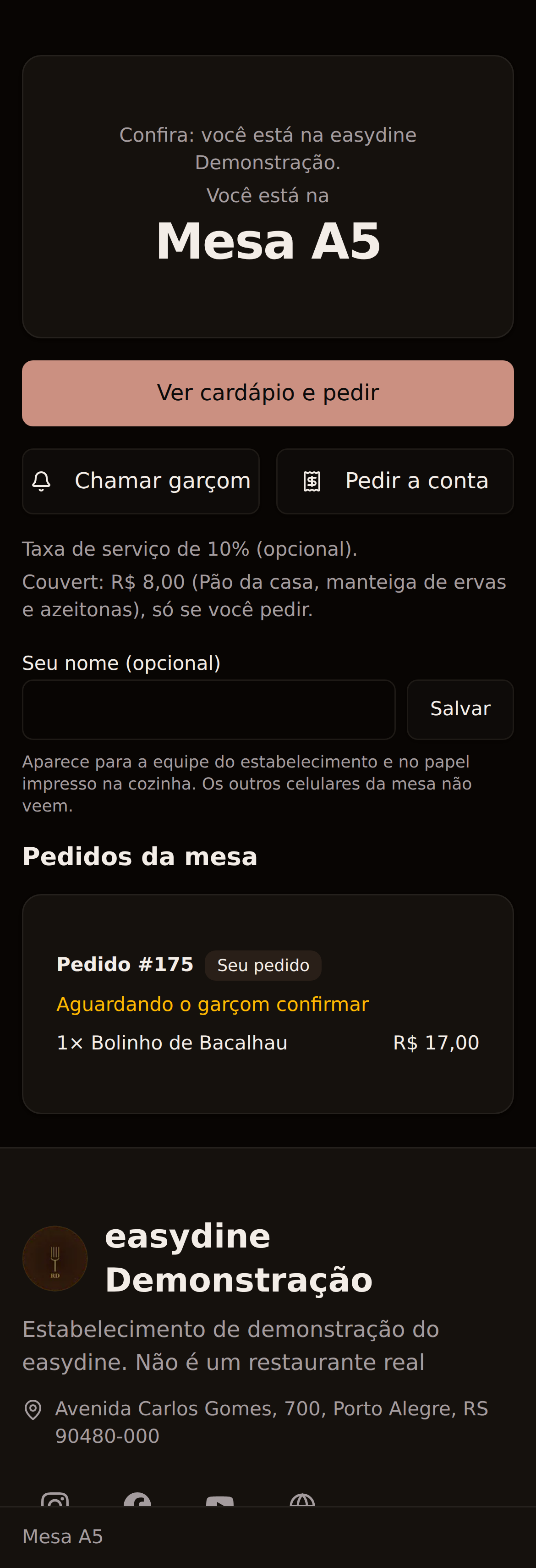
When they scan the code, guests see your full menu, with photos, prices, combos and dietary badges. Before ordering, they already see the service charge, always as optional, and the cover charge, with its price, what comes with it and the note that it is "only if you ask for it". They can:
- Give their name, if they want to. It shows to the waiter, on their orders, and on the kitchen ticket; the other phones at the table do not see it. It is deleted 30 days after the table's bill is closed;
- Pick each product's add-ons and flavors, such as the crust or a half-and-half pizza, and add notes to each item, like "no onions";
- Follow whether the order was confirmed, refused, or not confirmed in time;
- Call the waiter, with a reason if they want (more drinks, for example);
- Ask for the bill and see the table's bill on screen.
At the table, guests do not give a phone number, an email or a CPF. A product sold out at that location shows as "Sold out" and cannot be ordered, and a paused category does not show.
Have a discount code? The table page tells the guest to show it at the cashier: the code is applied to the table's bill at the cashier.
The table page opens in your business's customer language (Portuguese for a Brazilian business), and the guest can switch to Portuguese, English or Spanish in the page footer, in the Language field.
Calls and the bill
When a guest calls the waiter or asks for the bill, the alert reaches the table's waiter in the dining room, even with the phone screen off, if alerts are turned on. If nobody answers, the alert moves on to the area and then to the whole team on duty. Once the bill is asked for, the table takes no new orders. The cashier checks the bill, records the payment and closes the table. Learn more in dining room, cashier and kitchen.
The QR does not replace the printed menu where the law requires one
In some places, whoever uses a digital menu must also offer a physical one. In the state of Santa Catarina, for example, Law 19,688/2026 requires bars, restaurants, snack bars and similar venues to make a physical menu available when they use a digital one. Other states and cities have similar rules: check the one that applies to you.
easydine generates the printed menu from the same catalogue as the digital one. See digital menu.
In the state of Santa Catarina, ordering from the table QR, the dining room and the cashier are not available yet. At locations there, the table QR opens the menu only.
For a business outside Brazil, ordering from the table QR works at its locations, in its own country.
What it costs
Orders placed at the table via QR code carry no easydine fee. The only fee there is applies to orders paid online (delivery or pickup): 10% per sale, with card processing already included. At the table, the full sale amount is yours.
The orders module, which includes table QR codes, is part of the Completo plan. See the details in plans.