Kitchen printing
With easydine's automatic printing, every confirmed order comes out on paper seconds later, with no one pressing a button. Each station gets a printout of exactly what it needs to prepare. No shouting orders across the room, no copying tickets by hand.
How to set it up
Printing works through an easydine desktop app for Windows. Setup takes just a few minutes:
- Install the app on a computer at your business;
- In the panel, go to Orders → Printer Agents and generate a pairing code;
- Enter the code in the app. Done: panel and printers connected.
From then on, every confirmed order prints automatically.


Compatible printers
The app works with thermal receipt printers from the best-known brands on the market:
| Item | Supported options |
|---|---|
| Paper roll width | 80 mm |
| Connection | Network or USB |
If you already own a receipt printer, chances are it will work without replacing a thing.
Each station prints only what matters to it
In Orders → Printer Agents, in the What each printer prints section, you choose for each printer:
- Prints: everything, only the chosen, or everything except the chosen;
- Chosen: menus, categories or items. Ticking a menu includes everything in it, even what is created later;
- Order types: table, delivery, pickup or any combination. A printer that already printed delivery now prints pickup too;
- Tickets: orders, pre-bill and cancellations.
Some examples:
- The bar printer prints only the drinks category;
- The kitchen printer prints everything except drinks;
- The cashier printer prints only the pre-bill.
To send the drink that comes inside a combo to the bar, choose it by category or by item, not by menu. If some menu item does not print anywhere under the rules, the screen tells you which ones.
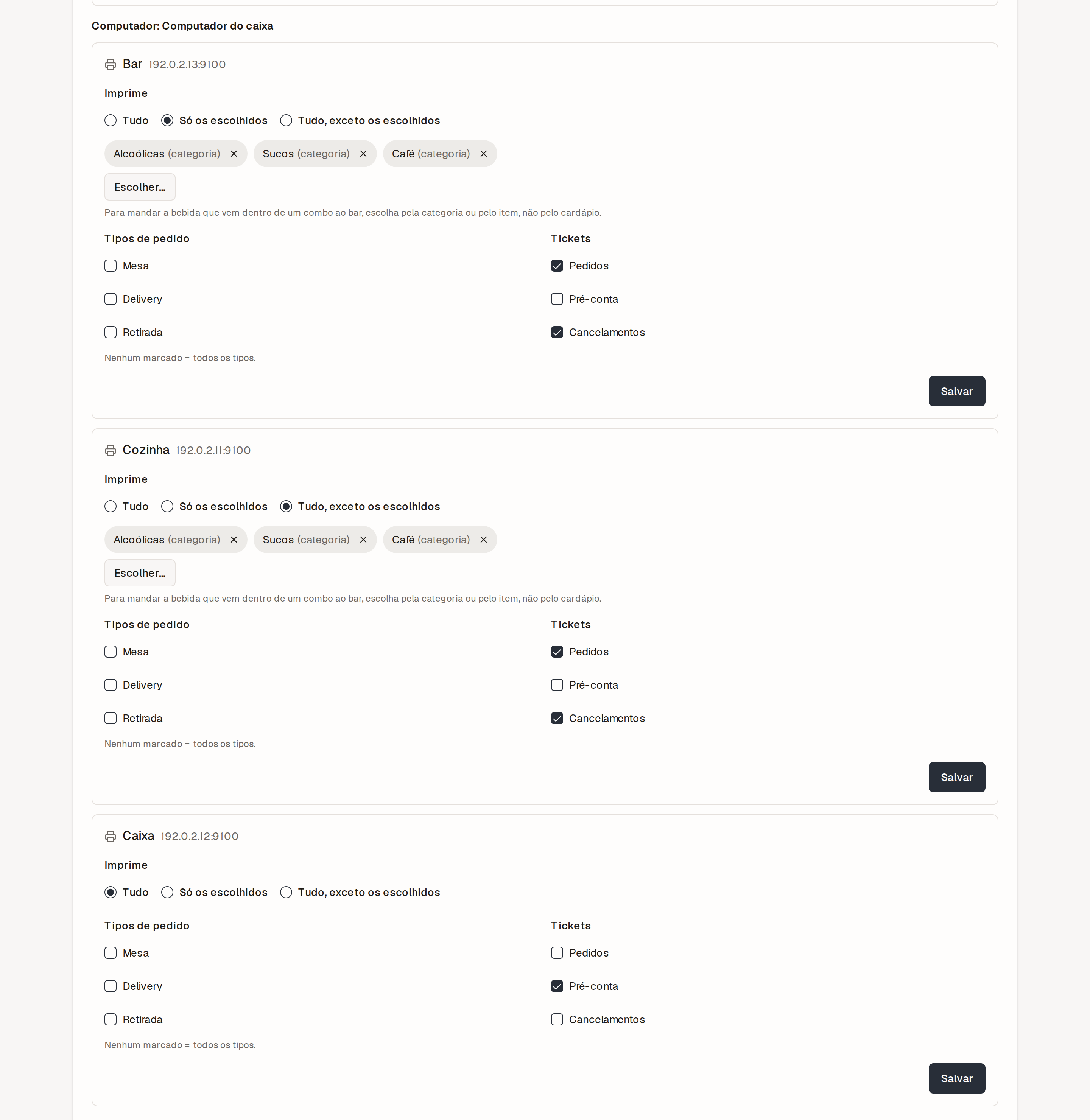
More than one computer with printers at the same location? The rules work across them: each computer prints only its own printers' lines. If you replace a computer, easydine asks whether the new one replaces the old and carries the rules over. An order that was on its way to the old computer moves to the new one; when easydine cannot confirm that all of it printed, the screen warns you (for example, "may not have printed in full"). Check with the kitchen before printing again.
What comes out on paper
- Table order: "MESA 7", the area, the order number, who sent it (waiter, cashier or the guest through the QR, with their name if they gave one), how many people and the items with their notes. No prices;
- Delivery order: the items with prices, and the address with its landmark and unit details. When the rules split the order between printers, each slip says it is only part of the order and carries the whole order's total;
- Pickup order: a pickup label in the header, where a delivery says it is a delivery, and no address; the items and prices;
- Paid on delivery or at pickup: a payment-on-delivery (or at-pickup) block with the method, the amount to collect and, for cash, what the change is for and how much to bring. A slip printed after you registered the whole amount as received (a reprint, for example) says it was already received by the establishment. A slip that already came out does not change;
- Pickup turned into a delivery: if the order was to be paid at pickup, the establishment's delivery fee goes into the amount to collect, and the block says how much of it is the fee (while what is left to collect covers the fee); if it was paid online, the slip carries the delivery fee to collect, with the amount;
- Add-ons and flavors: under each item, with the flavors in fractions (1/2 Pepperoni and 1/2 Mozzarella);
- Cancellation: when an item or an order already sent is cancelled, a "CANCELADO" (cancelled) slip prints on the printer that printed the original, even if the rule changed since. If no computer that printed the original has a signal, the slip also prints on another printer that takes cancellations, with a note on who needs to know. And if it prints nowhere, the dining room, the cashier and the order's details warn you: "was not printed. Tell the kitchen";
- Pre-bill: the table's check, marked "NÃO É DOCUMENTO FISCAL" (not a tax document). Under Pre-bill, choose which printer it prints on, whether it prints by itself when the guest or the waiter asks for the bill, and how many copies. With no pre-bill printer, it prints through the browser. Learn more in dining room, cashier and kitchen.
Per-printer rules, the pre-bill and cancellations on the thermal printer need the updated printing app. Until a computer is updated, it prints the whole order, as before, and the screen tells you which computer to update.
The app version
Under Orders → Printer Agents, the Version column shows the app version on each computer, and two notices appear when it matters:
- Update to print: the computer runs a version that cannot print something your store already uses (for example, add-ons, flavors, collect-on-delivery and pickup on paper). Until it is updated, it prints the add-ons and the payment to collect as an order note, and pickup under the type's English name ("TAKEOUT"), so nothing is lost, but the slip is less clear;
- New version available: there is a newer version, with nothing urgent.
The app itself shows its version at the bottom of its window and in the menu of its icon next to the clock. When a new version is out, that menu shows a new-version item with a download option, which opens the printers page of the panel, where the installer is. The Mac app is not available yet: the panel shows "Mac: coming soon".
Automatic reconnection
Network dropped or the power flickered? The app reconnects on its own as soon as everything is back up. No reconfiguring, no pairing again.
After setting up, place a test order and check that it came out on the right printer, with the customer's notes easy to read. Fine-tuning with an empty house is a lot calmer than doing it on a Friday night.
Availability
Kitchen printing is part of the orders module, available on the Completo plan. See the details in plans. It completes the flow of table orders via QR code and delivery: the customer orders, and the ticket comes out at the right station.