Order management
Orders come in from tables via QR code or through delivery. From there, your team tracks everything in the easydine panel, across four screens:
| Screen | What it's for | When to use it |
|---|---|---|
| Orders → Orders | Every order in a filterable list | Finding an order, checking past days, answering questions |
| Orders → Order Board | Cards organized in status columns | Running the flow during the rush |
| Orders → Kitchen Display | Items and notes only, no prices | Keeping open on a computer or tablet in the kitchen |
| Orders → Open Tables | Tables with an open tab | Reviewing, splitting, printing, and closing the check |
Use whichever screen makes sense for each person on the team.
Order Board
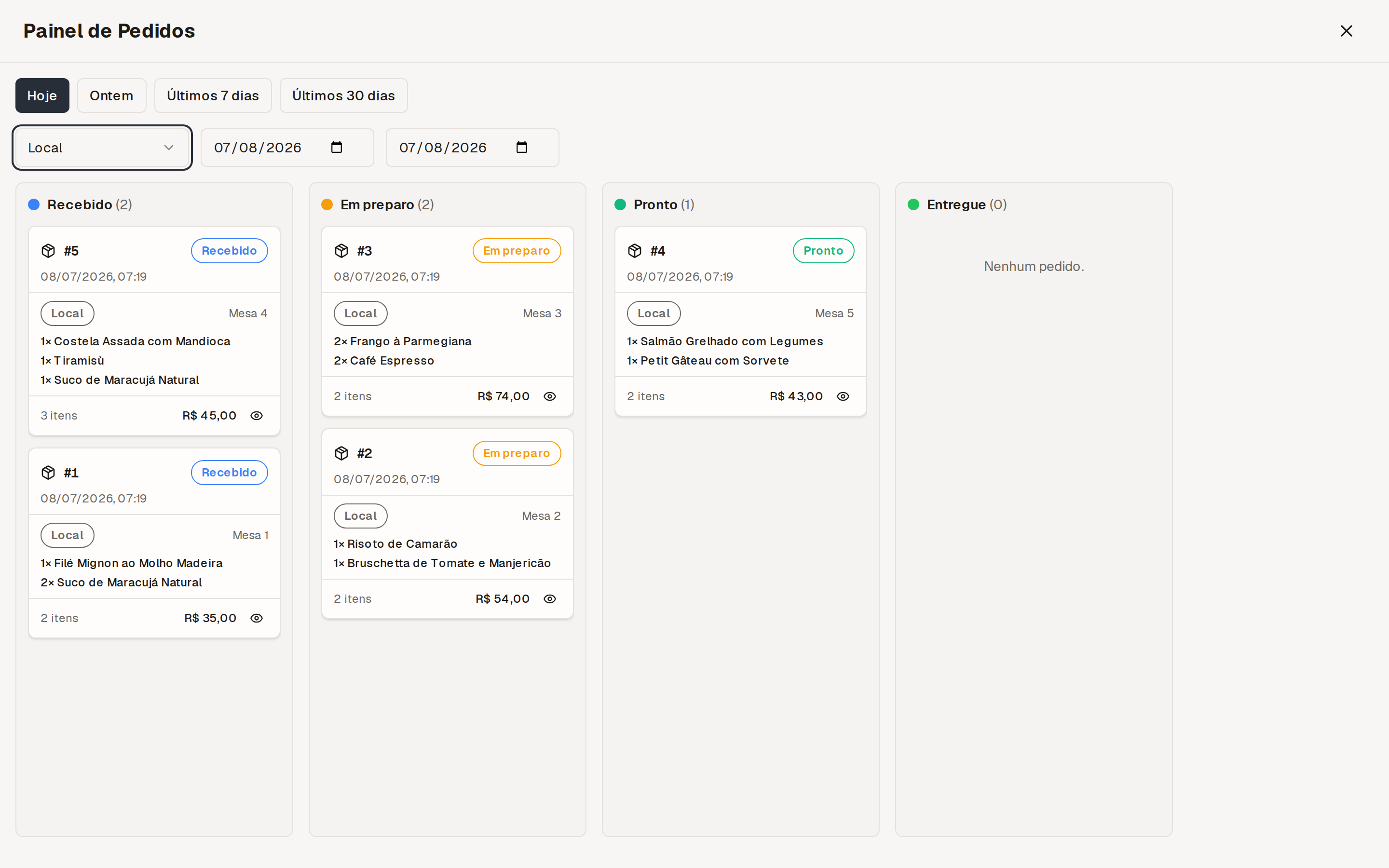
Each order is a card and each column is a status. As an order moves forward, drag its card to the next column. At a glance, you know what's waiting, what's being prepared, and what's already out the door.
How the order was paid
In the order list and in each order's details, under Orders → Orders, you see the payment method — PIX or credit card — along with its state: paid, awaiting payment, failed, or refunded. That is what you need to reconcile the day's orders against your statement.
When the payment did not go through easydine — a counter order, or a delivery paid at the door — the order says exactly that. easydine never sees the cash, the card machine, or a transfer made straight to you, so it would rather say it does not know than invent a payment method.
Kitchen
The prep team sees only the essentials: each order's items and the customer's notes. Prefer paper? easydine can also print orders automatically.
Open Tables
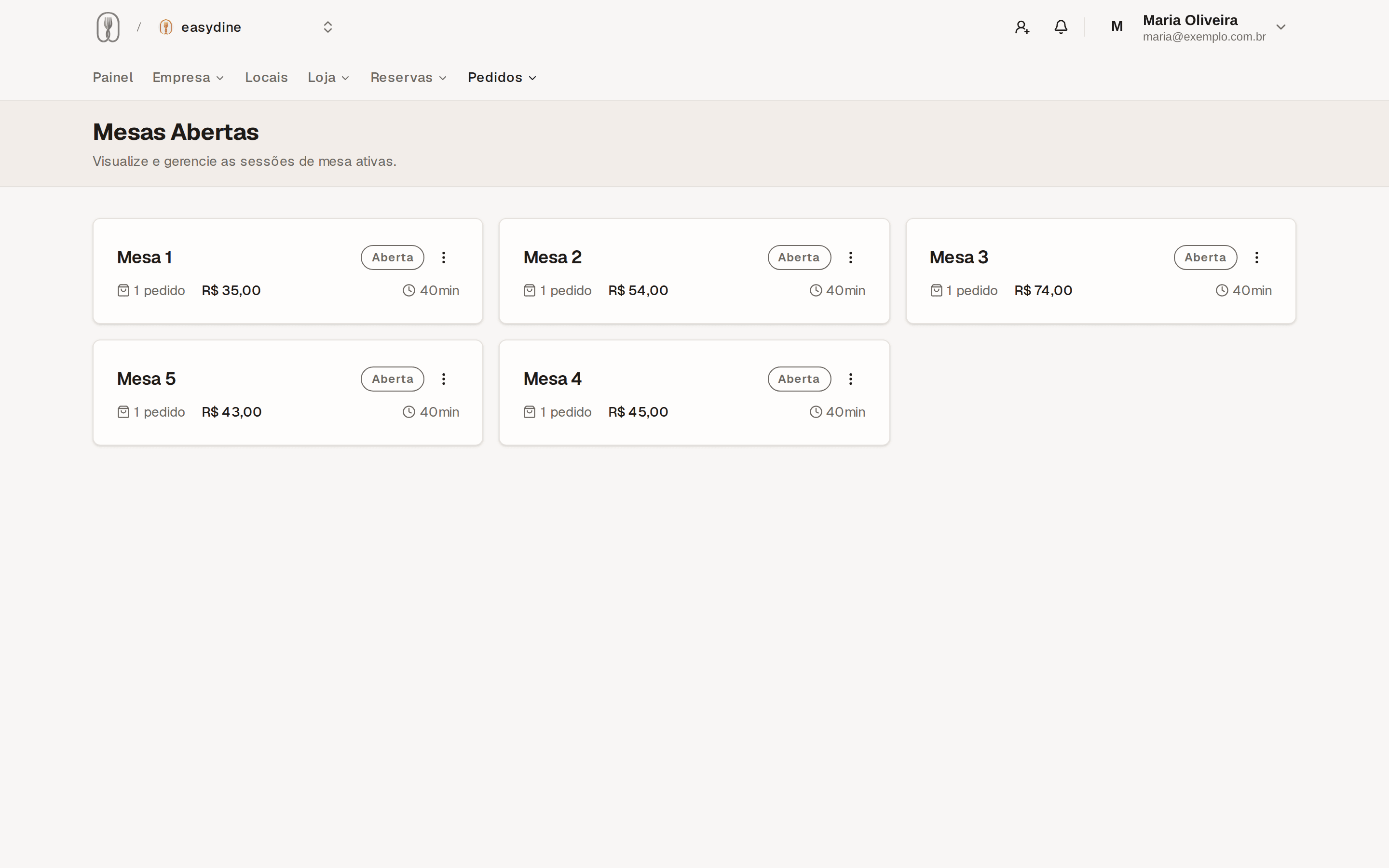
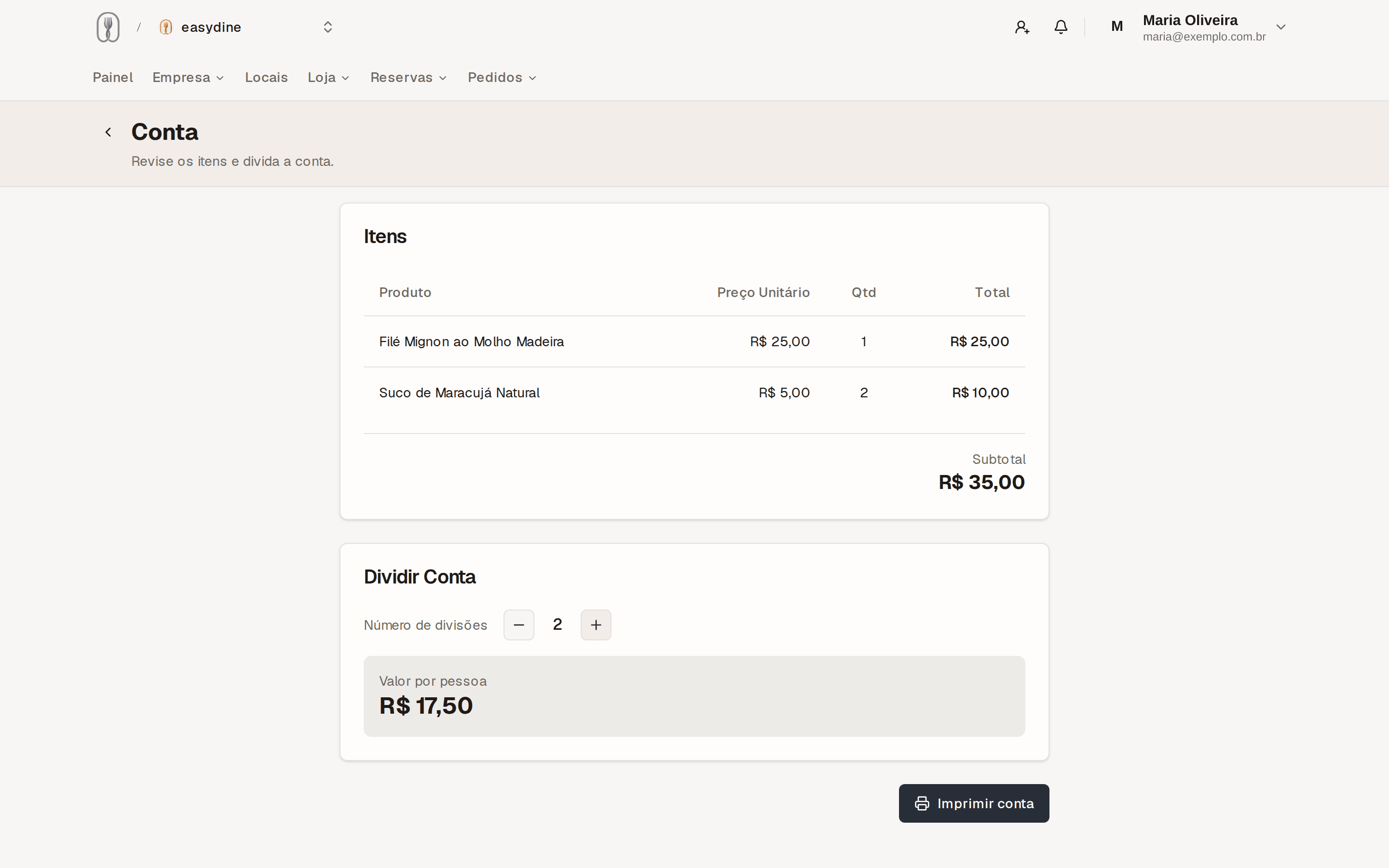
When guests ask for the check from their phone, the table shows up flagged in Orders → Open Tables. On this screen you can:
- See the table's full check;
- Split the check per person;
- Print the check;
- Close the table (and reopen it if it was closed by mistake).
A status flow that works your way
Every business runs differently. In Orders → Configurations you customize the stages an order goes through. For example: received, in preparation, ready, delivered. The Order Board columns follow the flow you define, and that flow can also trigger automatic courier dispatch.
Say what each stage means
In the same editor, every stage carries two things: a nickname (the name you and your customer see — "Out the door", "On the grill", whatever fits your place) and a standard status, chosen from a list.
The nickname is yours. The standard status is what the rest of the world understands: received, confirmed, preparing, ready, dispatched, concluded and cancelled. It is what lets a delivery move the order along on its own, without the system having to guess that "Refused" means a cancellation.
Keep calling the stages whatever your team calls them. The standard status sits underneath and never reaches the customer.
Concluded and Cancelled come from the stage itself
Choosing Concluded on a stage is what makes the order count as a sale. Choosing Cancelled is what keeps the order out of revenue, average ticket and best-selling products in your reports, leaving it only in the cancelled count.
There is no separate tick box for this any more: the stage you mark as Concluded is the conclusion, and the one you mark as Cancelled is the cancellation. A stage cannot be both, and both are automatically Terminal — a concluded or cancelled order does not carry on through the flow.
Each order type needs exactly one of each. If one is missing, the editor tells you when you save, and says which stage to adjust.
The conclusion is what lets the order move on its own: when you work with partner couriers and the partner reports the delivery as done, the order goes straight to that stage, with nobody dragging anything on the board.
An order you already closed by hand stays as it is — the partner does not undo what you decided.
Pausing orders for a while
No courier? Ran out of an ingredient? Too many orders at once? In Stores, on the store menu, use Pause orders.
Choose what to pause — delivery, order at the table, or both — the reason, and for how long (15, 30, 60, or 120 minutes, or until you resume it).
While it is paused:
- The store stays published and the menu stays visible. Only the order button goes away.
- The customer sees the reason instead of a broken screen. If you pick Other, whatever you write is what they read.
- You can resume at any moment from the same place.
Pausing keeps your setup and ends on its own when the time runs out. Sending the store back to draft, or switching off the order types, is a different thing: it disappears from the internet, shows no reason at all, and you have to remember to set it all back up afterwards.
Promotions: a discount on the price, with no code
In Orders → Promotions you put the discount straight on the price, with nothing for the customer to type. Each promotion reaches products, categories, menus, or stores — you can pick several at once and it is still one promotion: one name, one switch, one edit when the percentage changes. The discount is a percentage or a fixed amount, with optional start and end dates.
When more than one promotion reaches the same item, the most specific one wins — a product promotion beats a category promotion even when the category one discounts more. They never add up to each other.
Before you save, the screen shows which items would be affected and what each would sell for. Items already covered by a more specific promotion appear unchanged, and the screen says so — so you see the real effect before publishing, not after.
On the storefront, an item on promotion shows the list price struck through next to the promotional price.
The promotions list carries a Uses column: how many orders each promotion actually discounted. Cancelled orders are left out, so a promotion whose only orders were cancelled reads zero — it gave nothing away.
Above the Promotions and Discount codes lists there is a summary of the whole programme: how many are active, how many orders, how much discount, how much revenue and the average ticket, plus the most and least used with a direct link. It is the question no per-campaign screen answered — "is any of this working?" — without opening each one and adding it up by hand. A zero under "least used" is a real answer: an active campaign nobody has used.
Open a promotion and the Performance block shows orders, people, discount given, revenue and cancellations, with the latest orders that used it. Each order number is a link: click it and the orders list opens with that order on screen. Two different sums live there and the screen says which is which: the discount is what that promotion took off its own items, and the revenue is that of the orders it appeared in — an order with two promotions counts for both.
On an order's detail, every item sold on promotion shows the list price struck through above the price charged, and the totals gain a Promotions applied line with what the campaign discounted there. That amount is not subtracted again: the item prices are already the promotional ones. The line is there so you can tell why a dish sold cheaper months later, when nobody remembers which campaign was running.
Who can use it, once per person and a budget
Promotions carry the same three limits a code does, and they answer different questions:
- Who can use it — one or more customers. Empty means everyone.
- Once per person — each customer gets the discount on a single order. Cancelled orders do not count, so a cancelled order gives the promotion back to that person.
- Total discount budget — how much the campaign may give away in total. Once it is reached the campaign stops applying for everybody. Empty means no limit.
On a free delivery promotion the last two fields do not appear, and the system refuses them if you send them anyway: the budget is measured from the discount on an item price, and free delivery moves no item price at all. A field that looks like it does something and does not is worse than no field. Who can use it keeps working on every type.
A promotion enters the price on its own, which means it is also advertised on the menu. Because the public menu is the same for everybody, a promotion limited by person does not appear for anyone who is not identified.
That is deliberate: the price a customer sees on the menu must never go up at checkout. Someone who signs in and qualifies sees the promotional price; someone who does not sees the list price and pays the list price.
Free delivery
Besides percentage and fixed amount, a promotion can be of the Free delivery type. It does not touch item prices: it zeroes the order's delivery fee. That is why there is no amount to fill in — delivery is either free or it is not.
One item in the basket being on the promotion is enough for the order's delivery to go to R$ 0.00. The same item can be on a price promotion and give free delivery at once: those are two different numbers.
The courier is still paid the same. You are the one covering the delivery, and the panel says so before you publish.
At checkout the delivery line stays visible: the original amount appears struck through, with R$ 0.00 beside it and the reason after it. The customer sees what they did not pay.
Discount codes and customers
Two tools round out the operation:
- Orders → Discount Codes: create percentage or fixed-amount discount codes, with usage limits, a discount budget, expiration dates, a once-per-person limit, restriction by location and a personal code for one customer.
- Orders → Customers: see your customers' accounts, saved addresses, and order history. You can also block anyone who causes trouble.
Discount code status
The list shows where each code stands, so you do not have to check dates and counters one by one:
- Active: it can be used right now.
- Scheduled: the start date has not arrived; it begins on its own.
- Expired: the end date has passed.
- Used up: the usage limit has been reached.
- Budget spent: the code has already given away all the discount you set aside for it.
- Disabled: someone switched the code off with the Active toggle.
The status is worked out when the list is read, so an expired code works again as soon as you extend its end date — there is nothing to switch off and on. The Active toggle stays yours alone: nothing in the system unchecks it for you.
Where the code works
Every code starts working across the whole organization. In the form you can pick one or more locations, and then it only works in those locations' stores. No location picked still means "works everywhere": the empty list is the absence of a restriction, never "works nowhere".
The location filter on the list reads the same way. Filtering by one branch shows the codes tied to it and the ones that work across the organization, because those work there too.
Codes from different merchants never mix: PROMO10 in your account and
PROMO10 in another establishment's account are different codes, and neither
is accepted in the other.
A personal code: only who you pick
Every code starts open to anyone. Under Who can use it you can pick one or more customers from your base — and then only they can redeem it. With nobody picked, anyone can.
It covers the case a general code cannot: an order that went wrong, an agreed courtesy, an old customer you want back. Search by name or e-mail; the list is the same one under Orders → Customers.
A personal code only works for a buyer who signs in before placing the order. A guest checkout is not recognized when the code is checked, so it is refused — even for the right person, with the same e-mail.
Tell your customer that when you send the code, or it turns into a complaint.
"Who can use it" and "once per person" answer different questions and add up: the first says who, the second says how many times. Together they are "one person, once".
Two limits, answering different questions
The old "usage limit" field counts redemptions, not people. On its own, one person can consume as many as they like. So there are two numbers:
| Field | What it limits |
|---|---|
| Usage limit (0 = unlimited) | How many times the code can be used in total. |
| Total discount budget | How much it may discount across every order. |
The budget is what limits loss. On a percentage code the redemption count says nothing about how much left the till: 10% with a R$ 1,000 budget stops after R$ 10,000 of discounted sales, whether that is ten orders or two hundred. New codes come with R$ 100.00 suggested — clear the field if you want no ceiling at all.
When an order never becomes a sale (the customer abandons the PIX, the card is declined, there was a refund), the use and the amount go back to the code.
:::caution A budget smaller than one order
The budget is checked when the order is placed, not while the customer types the code. If what is left of the budget is smaller than that order's discount, the customer sees the discount on the details screen and gets "This coupon has reached the campaign's total discount limit." when they go to pay — the order is not created. That is the right outcome (nobody should give a discount the campaign cannot fund), but avoid leaving a budget smaller than a single order's typical discount.
:::
The coupon minimum counts the PROMOTIONAL price
The Minimum order amount field is checked against what the customer is actually spending on items — that is, after the menu promotions, and before the delivery fee.
It is the reading that matches the rest of the system: when an item is on promotion, the promotional price is its price, and that is the amount that lands on the order, on the receipt and in the reports. But it surprises people when both features are switched on at once:
A R$ 69.90 poke under a 15% store promotion costs R$ 59.42. A coupon that requires R$ 60.00 of items does not apply to that basket, even though the menu says R$ 69.90 — it is 58 centavos short.
The customer sees exactly that at checkout: "This coupon applies from R$60.00 in items. You need R$0.58 more." Before, they only read that the coupon was invalid, which told them nothing they could act on.
If you want the coupon to apply to that basket, lower its minimum or let it stack with promotions (Stack with promotions).
Once per person
The "Once per person" toggle starts off. On, each customer uses the code once — including guests, who have no account.
Two details that tend to surprise people:
- The limit belongs to the code, not to the store. A code that works across the whole organization and is marked once-per-person is used in store A and refused in store B for the same person. That is what the phrase describes.
- On Gmail, dots and
+tagdo not make different people. Spelling the name with dots in the middle, or adding a+followed by anything, reaches the same mailbox — and the code treats both spellings as one customer. On a custom domain the dot is part of the address; only the+tagis ignored.
This cuts casual reuse; it does not eliminate it — anyone determined enough makes another e-mail. What actually limits loss is the budget above.
Who used the code
On each code's edit screen, below the form, are the numbers for what it produced: how many orders, how many people, how much discount, how much revenue, and the latest redemptions with a name and a date.
Orders and people are different numbers, and the difference matters: ten orders from one customer are ten redemptions and one person. On a personal code it is the only number worth reading. If any order has no identified customer — a counter order entered from the panel, say — the screen says so, because it counts under orders and not under people.
Cancelled orders are counted apart and stay out of revenue and discount — the same way they do in the sales report.
On the Orders screen, each order shows the code it used, and the With a coupon only filter narrows the list to those.
A code together with a promotion
Every discount code has a "Stack with other promotions?" option, unchecked by default:
- Unchecked: the customer gets whichever is better for them — the promotional price or the code applied to the list price, whichever discounts more. Checkout says when the code was not applied, and which case it was: the code would discount less than the promotion, or it would come to exactly the same. The two messages are deliberately different — telling someone their code "gives less" when it gives the same amount is wrong.
- Checked: the code applies on top of the already promotional price. A 50% code on an item that went from R$ 50.00 to R$ 40.00 takes 50% off R$ 40.00, not off R$ 50.00.
The discount ceiling
Every account has a per-item discount ceiling — the most that promotions and codes together can take off an item. The default is 70%, so nothing changes for anyone already discounting within that.
The panel refuses to save a percentage promotion or code above the ceiling and tells you your account's limit. When a promotion and a code together would go past the ceiling on an order, checkout applies the maximum allowed and tells the customer the discount was capped — the amount charged and the amount on screen are always the same number.
The delivery fee sits outside this calculation: the ceiling applies to the items.
To change your account's ceiling, contact support at suporte@easydine.app.
Who you may send marketing to
Under Orders → Customers, the Marketing column tells you, customer by customer, whether you may send promotional messages:
- Accepts marketing: ticked the box to hear about news when placing an order.
- Accepts marketing (consented again): had unsubscribed and later opted back in.
- No consent: never ticked the box. Placing an order is not consent to receive marketing.
- Unsubscribed: asked to be taken off the list.
The filter above the list answers "who can I email" in one click, and the result count is the count for that selection — what you see on screen is the real size of the audience.
Two rules worth knowing:
- The consent is yours, not easydine's. Someone who agreed to hear from another business does not count as consented here.
- An unsubscribe applies everywhere. Someone who asked to be removed stops hearing from every business.
A new order with the box left unchecked does not cancel an earlier consent: anyone who wants out uses the unsubscribe link that comes with the messages. The customer's own page and the list always give the same answer.
You don't have to use all four screens from day one. Many businesses start with just the Order Board and add the Kitchen screen as things get busier.