Digital menu
With easydine, your menu lives on the internet instead of on paper. You edit products, prices, and photos in the panel, and the change reaches anyone browsing your online store or ordering from the table via QR code within a few minutes. It works for any food business: restaurants, bars, snack bars, pizzerias, and more.
Want to see it in action? Browse the menu on our demo store.
Always up to date, nothing to reprint
Changed a price? Ran out of an item? Update it in the panel and everyone sees the new version within a few minutes. You don't reprint menus or put stickers over old prices, and nobody is charged a price that already changed: the total is always recalculated when the order is placed.
Categories, photos, and prices
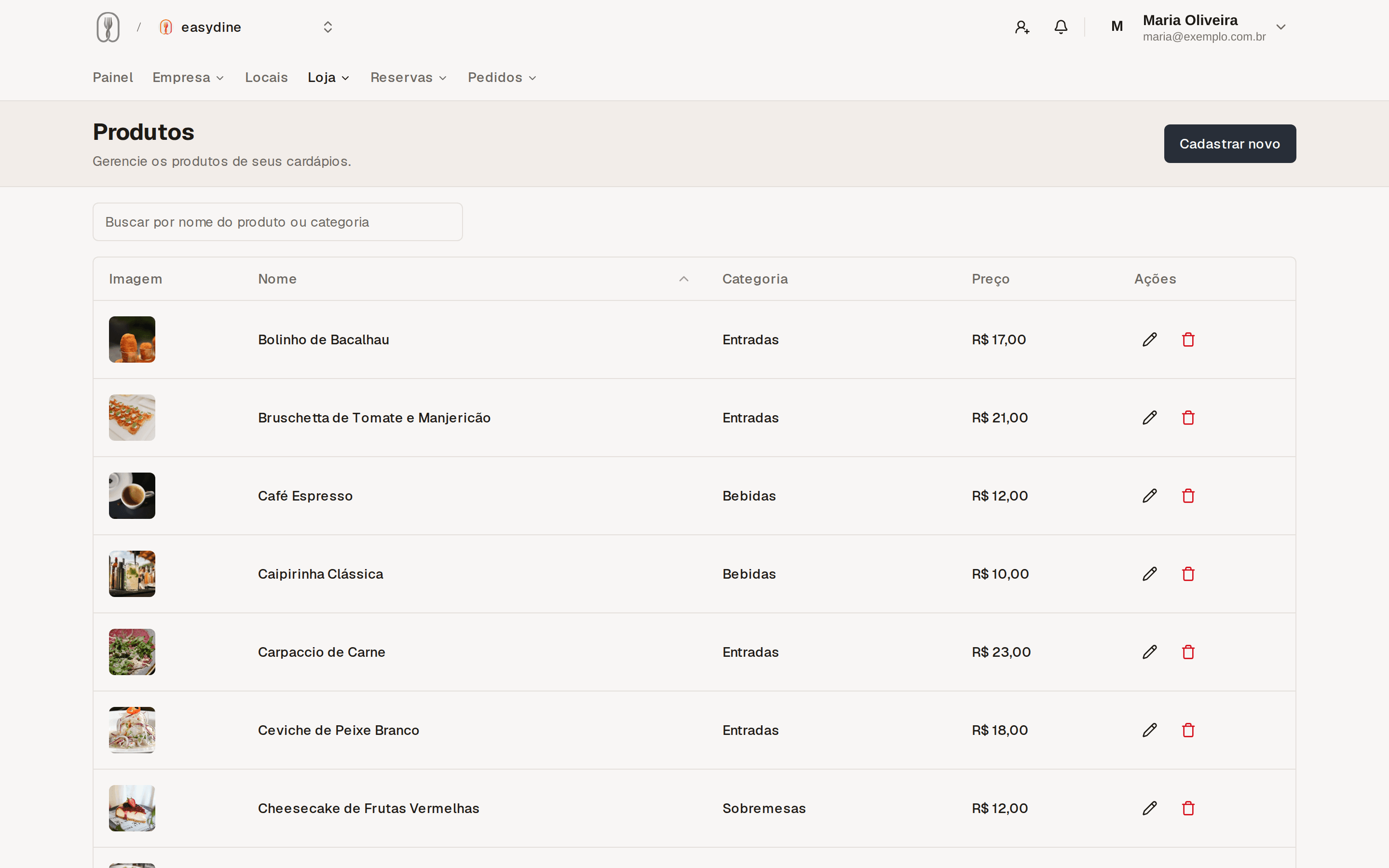
Organize items into categories: appetizers, sandwiches, drinks, desserts, whatever makes sense for your business. Each product has a name, description, photo, and price. Good photos are worth the effort, because items with photos sell more.
Categories live under Store → Product Categories and items under Store → Products.
Combos
Build combos and the menu shows an "Includes:" list with everything that comes in them. Customers know what they're getting before they order, and your team answers fewer questions.
Dietary labels
Tag each item with ready-made labels: vegetarian, vegan, gluten-free, lactose-free, sugar-free, and nut-free. Anyone with a dietary restriction finds what they can eat in seconds, without having to ask your staff.
Alcoholic drinks and other adults-only products can be marked as 18+, making the notice clear right on the menu.
Sharing a single dish
Every dish has its own link. Opening an item on the menu points the address bar at that dish, and the Share button opens your phone's share sheet or copies the link for you to paste wherever you like.
Whoever receives it sees a card with the dish photo, the name, the category, and the dietary labels. Tapping it lands on the menu with the dish already open. The price is deliberately left off the card: it changes with promotions, and the point is to get the person into your store to see the rest of the menu.
Categories have their own links too. Share the "Desserts" link and whoever opens it arrives at the right section.
The link to the whole menu keeps working exactly as before, and in that case the card shows the menu banner.
Multiple menus in the same store
You can create more than one menu per store. One for food and another for drinks, for example. Each menu has its own categories and items, and all of them are available to customers in your online store.
Where to set it up
Go to Store → Menus in the panel to create and organize your menus. That's where you choose which categories and products appear in each one.
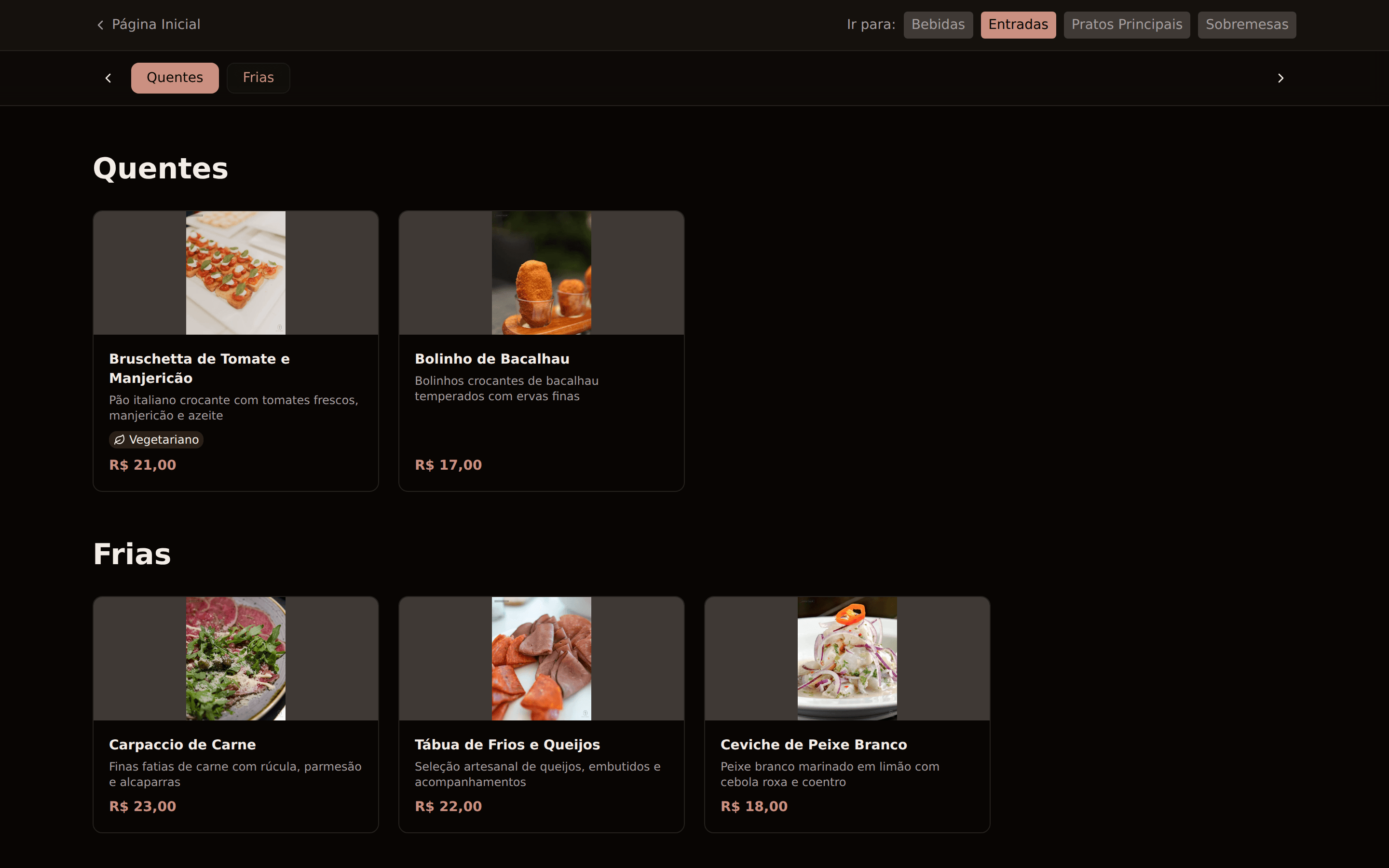
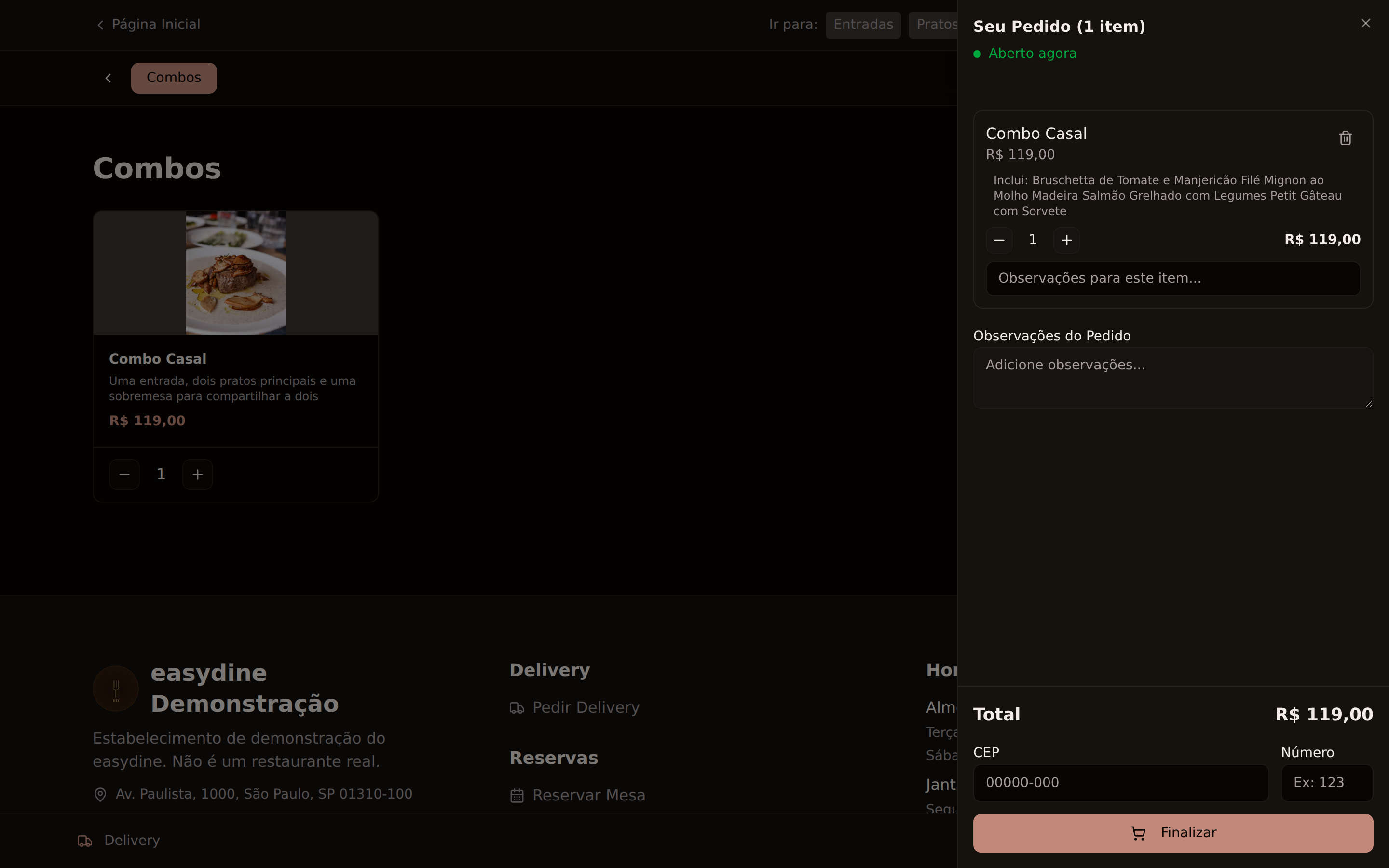
The guide Create your first menu walks you through the whole journey, step by step, from adding a product to a published menu.
Where to go next
- See how the menu looks in your online store.
- Let customers order on their own from the table with QR code ordering.
- Sell beyond your dining room with delivery.